Questions:
- Is there a limit to the number of team members I can invite to each session?
- Does it have to be the same team members every session?
- How do I add or remove team members on Rising Team?
- If I add new team members, what's the best way to catch them up on past exercises?
- Can I invite people who aren’t my direct reports to my Rising Team account if I have a coaching or dotted line relationship with them?
- How can I measure the impact that Rising Team has on my team?
Is there a limit to the number of team members I can invite to each session?
Yes, we set the limit to 14 team members to keep the session to a reasonable length. Since the sessions involve active participation and sharing, keeping the size of the team to 14 or fewer ensures everyone gets time to talk and you can have a meaningful session within two hours. In fact, the ideal team size is under 10 whenever possible. If you have a team that is larger than 14, you can split the team into smaller groups.
Does it have to be the same team members every session?
Nope! Rising Team will adapt to whichever team members are on your team at the time of any given session. You start each session by sharing a link and a code with your team, so as long as you keep it to 14 or fewer people per session, you can always include anyone you’d like to have join.
How do I add or remove team members on Rising Team?
Visit your Admin tab to view a snapshot of your team. From there, you can add or remove team members. The easiest way to add people is simply to have them join your next Rising Team session! They’ll have instant access via the session URL and code and, by virtue of joining a session, we’ll automatically add them to your team profile.
If I add new team members, what's the best way to catch them up on past exercises?
Anytime you add new team members, we make it possible for them to catch up with the exercises you’ve already done. Go to the Team tab and click on a person’s name. You’ll see the option to “Send invite” for any exercise they haven’t taken. You can do this for anyone who misses a session as well!

We’ll send you an email once someone completes a catch-up exercise. After that, head to the “Team summary” section of the Team tab and select the exercise. You can toggle the drop-down menu to review the individual’s responses, or choose the Team Overview option to see everyone, including your newly added team members.
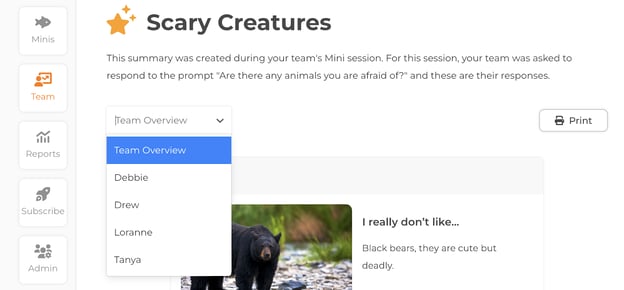
A great way to integrate a new team member is to have them do this catch -up exercise and then review the Team Overview as an activity in your next team meeting. Doing so helps anyone new feel included and is a fantastic opportunity to remind existing team members of what they learned and how they felt during the original exercise, without needing to redo the full session.
Can I invite people who aren’t my direct reports to my Rising Team account if I have a coaching or dotted line relationship with them?
Yes! You can invite anyone on a team you lead where you are trying to build stronger connections and working relationships. This could include direct reports, cross-functional “dotted line” reports, freelancers, interns, etc.
How can I measure the impact that Rising Team has on my team?
There are two ways to measure the impact of Rising Team:
First are the brief in-session surveys we run at the end of each session. You can see those results in the Session Summary reports on the Reports tab.
Second, we offer a Team Health survey to track how your team trends over time as you use Rising Team. It's a short survey with 16 questions about the health of the team, and only takes a few minutes to fill out. We recommend you run a first survey early on to baseline where things stand, and then re-run it periodically after that. Results are reported as averages and only shown when three or more people respond in order to preserve anonymity. They are also shared with your company admin, if applicable. Visit the Reports tab and select Team Health as the report type to send out the survey and check the results anytime.